<?xml version="1.0" encoding="utf-8"?><feed xmlns="http://www.w3.org/2005/Atom" ><generator uri="https://jekyllrb.com/" version="3.9.5">Jekyll</generator><link href="https://devincog.github.io/blogs/feed.xml" rel="self" type="application/atom+xml" /><link href="https://devincog.github.io/blogs/" rel="alternate" type="text/html" /><updated>2024-07-26T09:59:52+00:00</updated><id>https://devincog.github.io/blogs/feed.xml</id><title type="html">Devincog7</title><subtitle>Blogs from Devincog about Computer Science, Python, Linux, Web Development, Ethical Hacking and much more.</subtitle><entry><title type="html">Getting started with Repl.it</title><link href="https://devincog.github.io/blogs/programming/2024/07/26/replit-tutotial.html" rel="alternate" type="text/html" title="Getting started with Repl.it" /><published>2024-07-26T00:00:00+00:00</published><updated>2024-07-26T00:00:00+00:00</updated><id>https://devincog.github.io/blogs/programming/2024/07/26/replit-tutotial</id><content type="html" xml:base="https://devincog.github.io/blogs/programming/2024/07/26/replit-tutotial.html"><![CDATA[<h2 id="introduction">Introduction</h2>

<p>In the <a href="https://devincog.github.io/blogs/programming/2024/07/25/ide-vs-code-editor.html">previous post</a>, we learnt about IDEs and Code editors. In this post, we will learn how to setup <em>Replit</em> for writing code in python.</p>

<h2 id="repltit-introduction">Repltit Introduction</h2>
<p>Replit is free online coding workspace that we can use to get started with python with minimal setup.</p>

<h3 id="key-features">Key features</h3>

<ul>
  <li>
    <p><strong>Online IDE</strong>: Replit provides an integrated development environment (IDE) that runs directly in our web browser. You don’t need to install anything locally; just visit the Replit website and start coding.</p>
  </li>
  <li>
    <p><strong>Python Support</strong>: Replit fully supports Python. We can create Python projects, write Python code, and execute it instantly. It’s a great way to practice Python concepts without worrying about setup.</p>
  </li>
  <li>
    <p><strong>Code Editor</strong>: Within Replit, there’s a code editor where we write your Python programs. It offers features like syntax highlighting, autocompletion, and error checking.</p>
  </li>
  <li>
    <p><strong>Collaboration</strong>: Replit allows real-time collaboration. You can invite friends or classmates to work on the same project simultaneously. It’s like Google Docs for coding!</p>
  </li>
  <li>
    <p><strong>Project Management</strong>: We can organize our Python projects using Replit’s workspace. Create folders, manage files, and keep everything tidy.</p>
  </li>
  <li>
    <p><strong>Run Code</strong>: Click the “Run” button, and the Python code executes instantly. You’ll see the output right there in the same window.</p>
  </li>
  <li>
    <p><strong>Learn by Doing</strong>: Replit encourages hands-on learning. Try out Python examples, experiment with code, and see immediate results.</p>
  </li>
</ul>

<h2 id="python-with-replit">Python with Replit</h2>

<p>Remember our <a href="https://devincog.github.io/blogs/programming/2024/05/14/Getting-Started-With-Python.html">first python code</a> we wrote? Well, let’s see how we cab rewrite it in replit.</p>

<ul>
  <li>
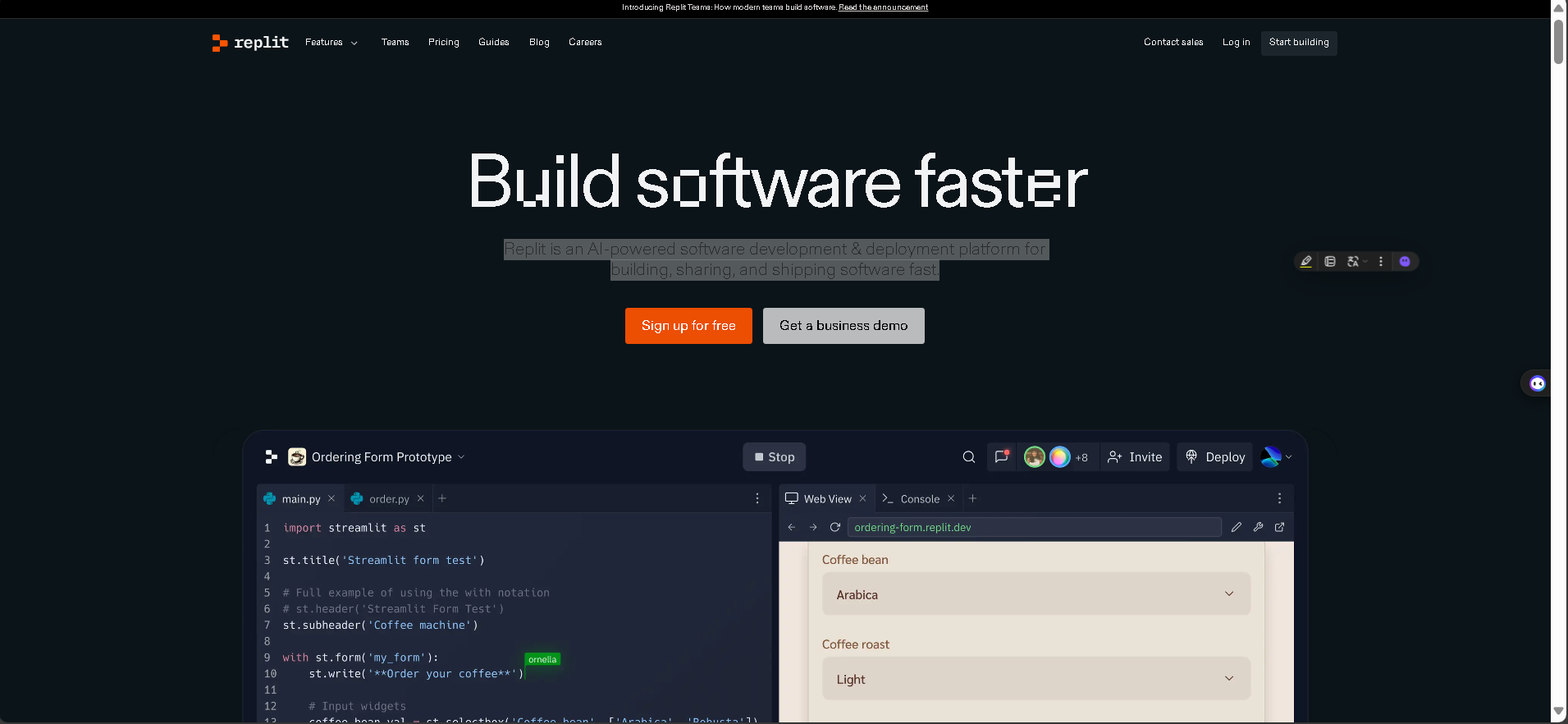
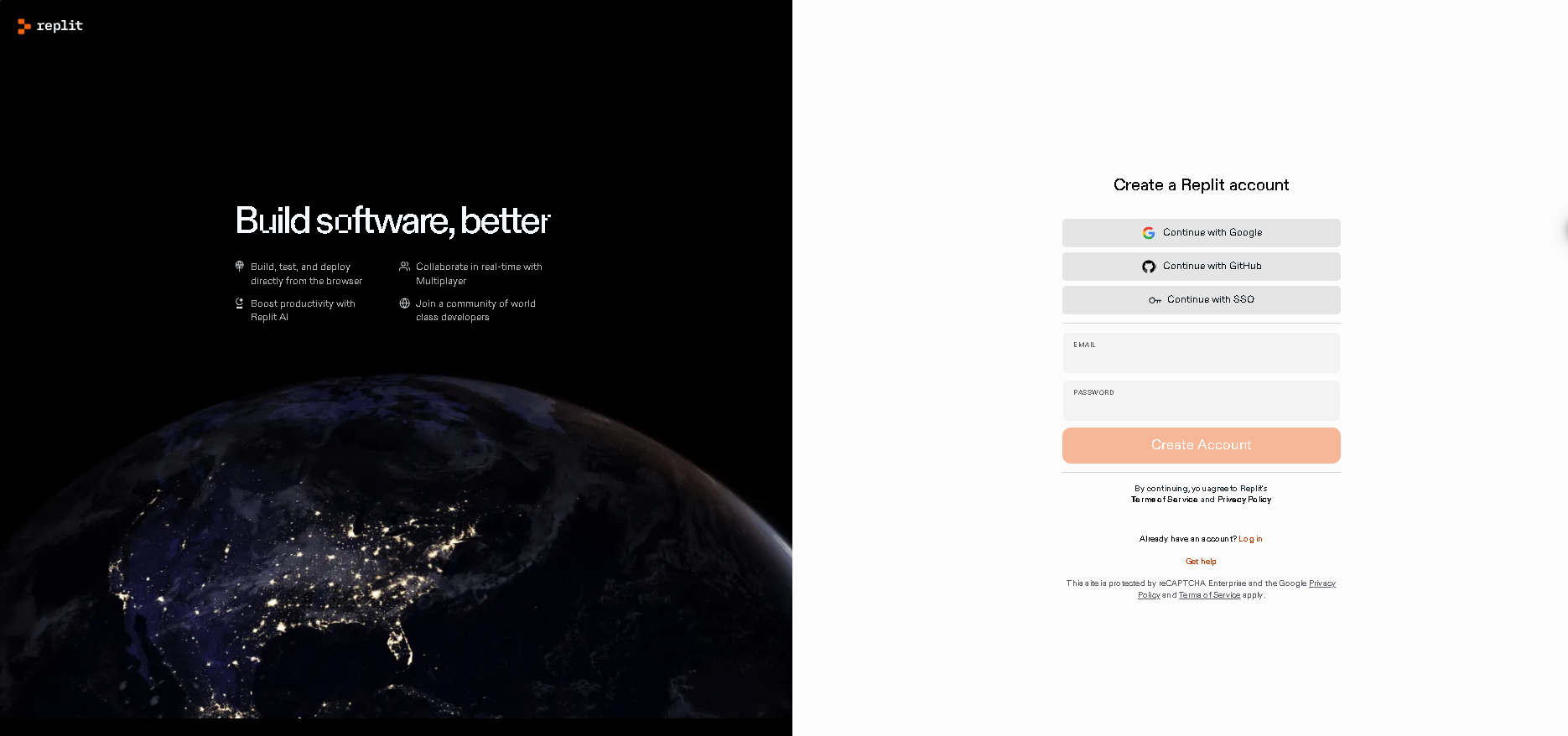
    <p><strong>Step 1</strong>: Go to the <a href="https://replit.com/">replit website</a> and sign up for an account.</p>

    <p><img src="/blogs/assets/images/replit-tutorial/replit-home-page.png" alt="replit home page" /></p>

    <p><img src="/blogs/assets/images/replit-tutorial/replit-signup-page.png" alt="replit signup page" /></p>
  </li>
  <li>
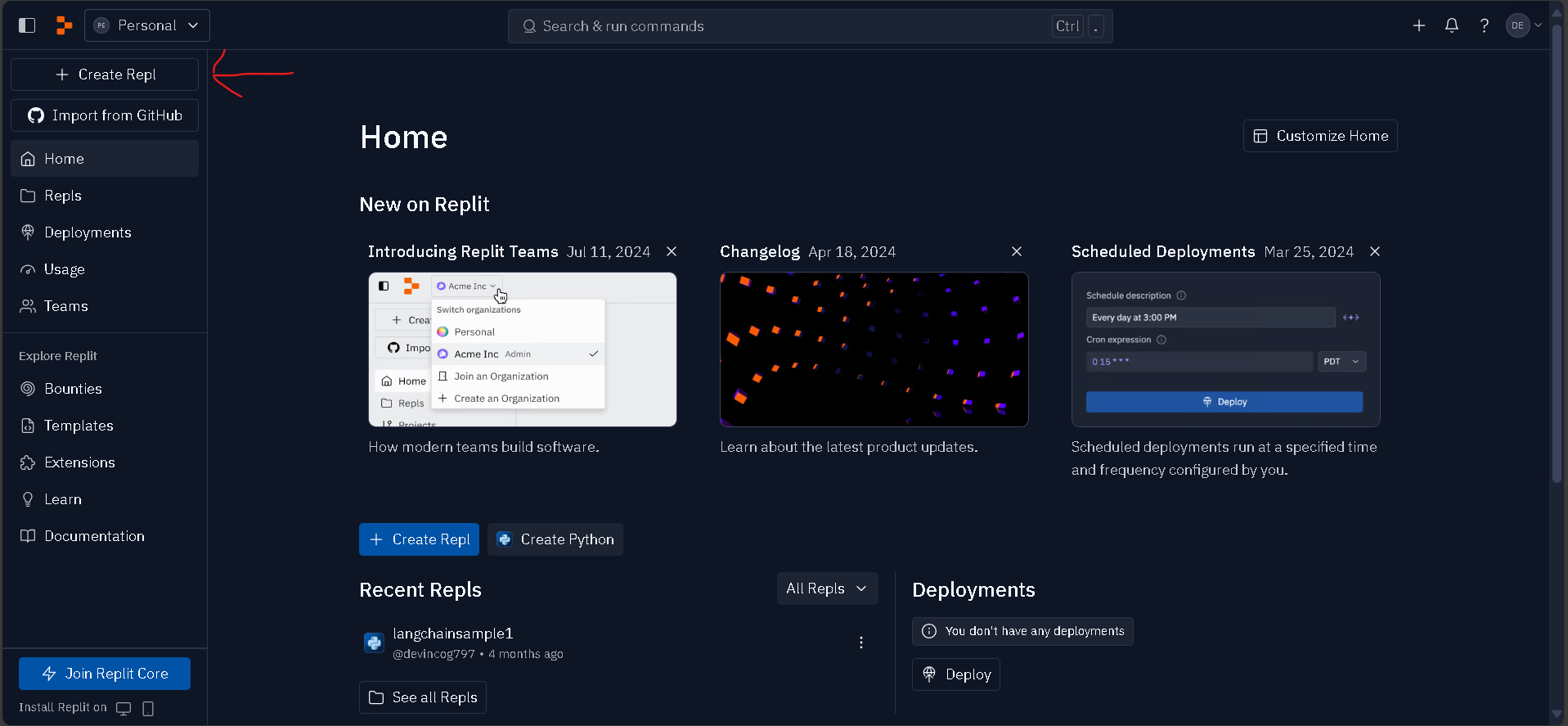
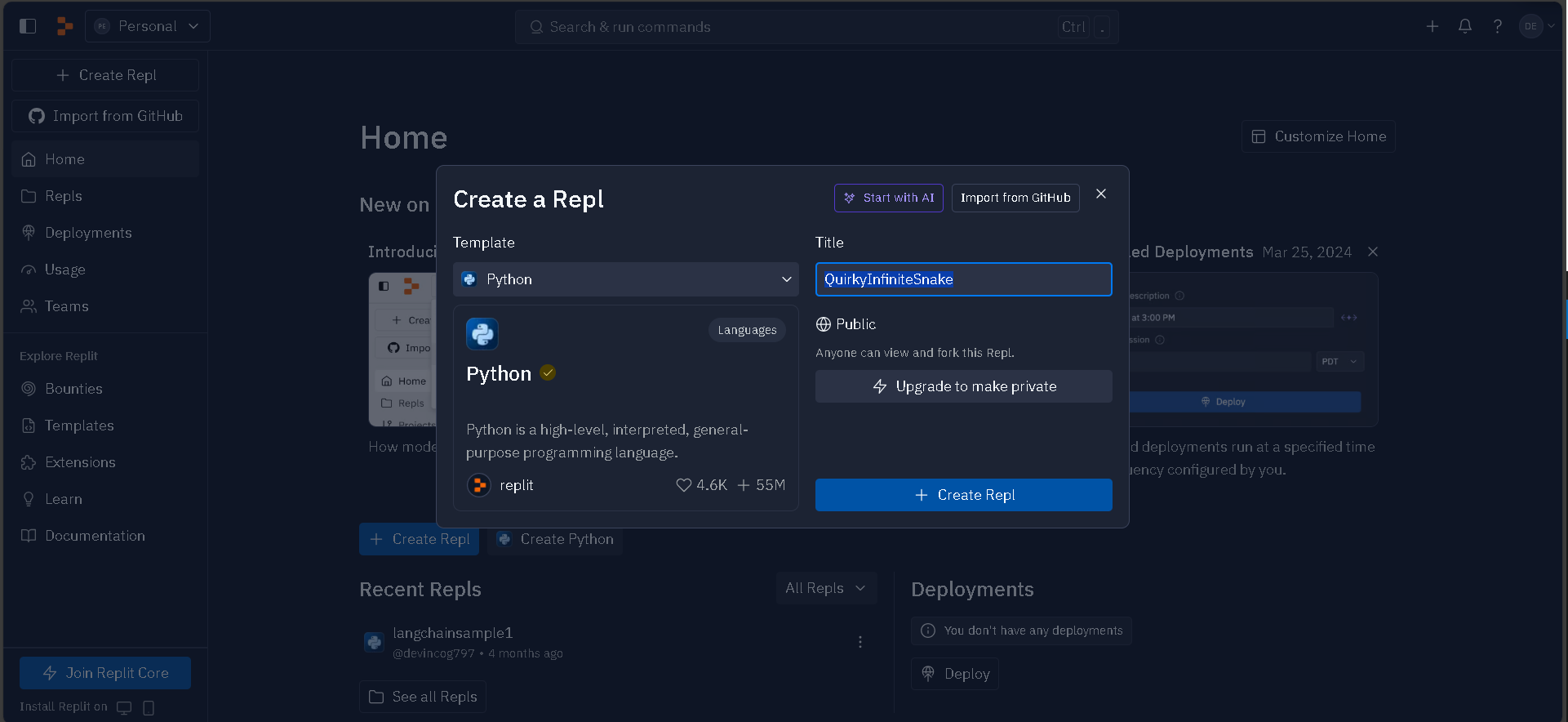
    <p><strong>Step 2</strong>: Create a repl. Select python from the list of templates and Name your file. Then click “Create Repl”</p>

    <p><img src="/blogs/assets/images/replit-tutorial/replit-create-file.png" alt="replit create file" />
  <img src="/blogs/assets/images/replit-tutorial/replit-createfile-with-name.png" alt="replit create with name" /></p>
  </li>
  <li>
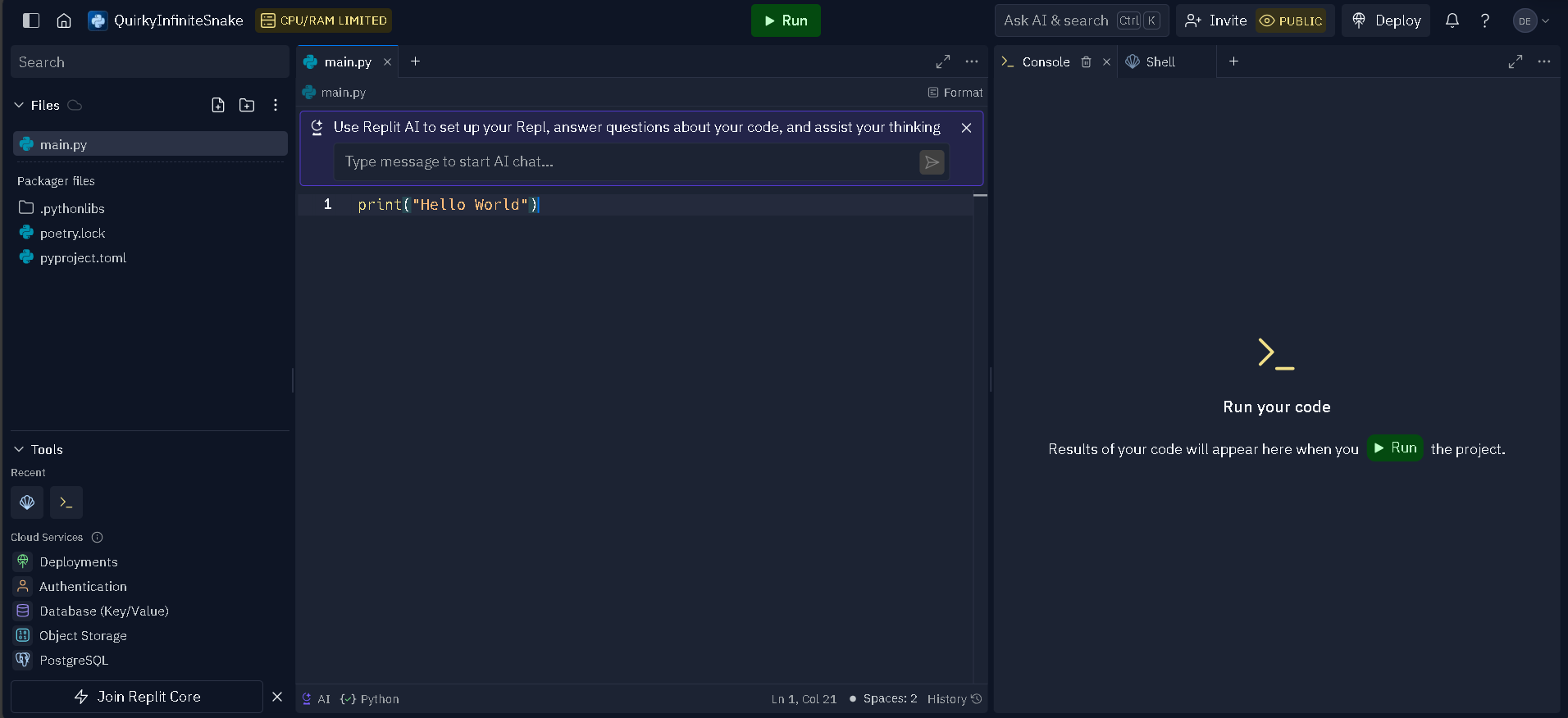
    <p><strong>Step 3</strong>: Now we can write our program we wrote earlier(print(“Hello world”)) and click run.</p>

    <p><img src="/blogs/assets/images/replit-tutorial/hello-world-replit.png" alt="hello world in python in replit" /></p>
  </li>
</ul>

<h2 id="conclusion">Conclusion</h2>

<p>There you go! We have rewritten our helo world pyhon program in replit. Now you can code in any bowser or download the replit app and continue coding anytime.</p>]]></content><author><name></name></author><category term="Programming" /><category term="programming" /><summary type="html"><![CDATA[Introduction]]></summary><media:thumbnail xmlns:media="http://search.yahoo.com/mrss/" url="https://th.bing.com/th/id/OIP.TvVqJA92Nz1BCsCwNa4IGAAAAA?rs=1&amp;pid=ImgDetMain" /><media:content medium="image" url="https://th.bing.com/th/id/OIP.TvVqJA92Nz1BCsCwNa4IGAAAAA?rs=1&amp;pid=ImgDetMain" xmlns:media="http://search.yahoo.com/mrss/" /></entry><entry><title type="html">IDE and Code Editor</title><link href="https://devincog.github.io/blogs/programming/2024/07/25/ide-vs-code-editor.html" rel="alternate" type="text/html" title="IDE and Code Editor" /><published>2024-07-25T00:00:00+00:00</published><updated>2024-07-25T00:00:00+00:00</updated><id>https://devincog.github.io/blogs/programming/2024/07/25/ide-vs-code-editor</id><content type="html" xml:base="https://devincog.github.io/blogs/programming/2024/07/25/ide-vs-code-editor.html"><![CDATA[<h2 id="introduction">Introduction</h2>
<p>In the <a href="https://devincog.github.io/blogs/programming/2024/05/14/Getting-Started-With-Python.html">previous post</a> we installed python and wrote our first Python program using Windows Notepad. Now notepad is a good editor if you want to quickly edit something or write a small and simple program but for more complex programs we use an IDE or a code editor as it gives us more features to make things easier.</p>

<h2 id="code-editors">Code Editors</h2>

<p>Code editor is a specialized text editor designed specifically for writing and editing code. It provides features that simplify the process of coding, making it easier and more efficient for programmers and developers. VS code, Sublime Text, Atom, are some examples of Code edittors.</p>

<h3 id="key-features">Key Features</h3>

<ul>
  <li>
    <p><strong>Syntax Highlighting</strong>: Code editors highlight keywords, operators, and other elements of a programming language in different colors to make the code more readable and easier to understand.</p>
  </li>
  <li>
    <p><strong>Autocomplete</strong>: This feature suggests completions for partially typed words or code structures, which can speed up coding and reduce errors.</p>
  </li>
  <li>
    <p><strong>Code Formatting</strong>: Code editors often include tools to automatically format your code according to standard style guidelines, ensuring consistent and readable code.</p>
  </li>
  <li>
    <p><strong>Error Detection</strong>: Many code editors can detect syntax errors and other common coding mistakes in real-time, helping developers correct issues before running their code.</p>
  </li>
  <li>
    <p><strong>Extensions and Plugins</strong>: Code editors typically support various extensions and plugins that add functionality, such as debugging tools, version control integration, and language-specific features.</p>
  </li>
  <li>
    <p><strong>Multiple Language Support</strong>: Good code editors support a wide range of programming languages, allowing developers to work on different types of projects within the same environment.</p>
  </li>
</ul>

<h2 id="integrated-development-environmentide">Integrated Development Environment(IDE)</h2>

<p>An Integrated Development Environment(IDE) is a software that provides a complete set of tools for software development. Unlike a simple code editor, an IDE integrates various development tools into a single interface, offering a more cohesive and efficient workflow for developers. Some examples include, <em>Pycharm</em>(IDE for python), <em>IntelliJ IDEA</em>(IDE for java), <em>Xcode</em>(IDE for making apple apps), etc.</p>

<h3 id="key-features-1">Key Features</h3>

<ul>
  <li>
    <p><strong>Code Editor</strong>: At the core of an IDE is a code editor that often includes advanced features like syntax highlighting, code completion, and code folding.</p>
  </li>
  <li>
    <p><strong>Compiler/Interpreter</strong>: IDEs often include compilers or interpreters for the languages they support, allowing developers to compile or interpret code directly within the environment.</p>
  </li>
  <li>
    <p><strong>Debugger</strong>: Integrated debugging tools help developers find and fix errors in their code by allowing them to step through code execution, set breakpoints, inspect variables, and analyze the call stack.</p>
  </li>
  <li>
    <p><strong>Build Automation Tools</strong>: IDEs usually include build automation tools that streamline the process of compiling, linking, and packaging code into executable programs or libraries.</p>
  </li>
  <li>
    <p><strong>Version Control Integration</strong>: Many IDEs integrate with version control systems like Git, enabling developers to manage code repositories, track changes, and collaborate with others without leaving the environment.</p>
  </li>
  <li>
    <p><strong>Project Management Tools</strong>: IDEs often provide tools for managing project files and directories, configuring project settings, and handling dependencies.</p>
  </li>
  <li>
    <p><strong>Code Navigation and Refactoring</strong>: Features like go-to-definition, find references, and automated refactoring make it easier to navigate and improve code.</p>
  </li>
  <li>
    <p><strong>Testing and Profiling Tools</strong>: Some IDEs include tools for running unit tests and profiling code performance, helping developers ensure their code is correct and efficient.</p>
  </li>
  <li>
    <p><strong>Integrated Terminal</strong>: An integrated terminal or command-line interface allows developers to execute commands and scripts directly within the IDE.</p>
  </li>
  <li>
    <p><strong>Plugin and Extension Support</strong>: Many IDEs support plugins and extensions that add additional functionality, such as support for new languages, frameworks, and tools.</p>
  </li>
</ul>

<h2 id="ide-vs-code-editor">IDE vs Code Editor</h2>

<p>There might be a confusion on which one to use so here is a comparison table for an IDE vs a Code Editor.</p>

<table>
  <thead>
    <tr>
      <th>Aspect/Feature</th>
      <th>Code Editor</th>
      <th>IDE</th>
    </tr>
  </thead>
  <tbody>
    <tr>
      <td><strong>Purpose</strong></td>
      <td>Editing code</td>
      <td>Full-scale development</td>
    </tr>
    <tr>
      <td><strong>Key Features</strong></td>
      <td>Syntax highlighting, Autocompletion, Basic error detection, Code formatting, Extensions and plugins</td>
      <td>Advanced code editor, Compiler/Interpreter, Debugger, Build automation, Version control, Project management, Code navigation, Testing, Profiling, Integrated terminal</td>
    </tr>
    <tr>
      <td><strong>Performance</strong></td>
      <td>Fast and responsive</td>
      <td>More resource-intensive</td>
    </tr>
    <tr>
      <td><strong>Customization</strong></td>
      <td>Highly customizable</td>
      <td>Somewhat Customizable but focused on extensive out-of-the-box features</td>
    </tr>
    <tr>
      <td><strong>Examples</strong></td>
      <td>Visual Studio Code, Sublime Text, Atom, Notepad++</td>
      <td>Eclipse, IntelliJ IDEA, PyCharm, Android Studio, Xcode</td>
    </tr>
    <tr>
      <td><strong>Complexity</strong></td>
      <td>Simple, lower learning curve</td>
      <td>More complex, steeper learning curve</td>
    </tr>
    <tr>
      <td><strong>Ideal Project Size</strong></td>
      <td>Small to medium projects, quick edits</td>
      <td>Large-scale projects</td>
    </tr>
    <tr>
      <td><strong>Speed and Resource Usage</strong></td>
      <td>Faster, less resource-intensive</td>
      <td>Slower, more resource-intensive</td>
    </tr>
    <tr>
      <td><strong>Integration</strong></td>
      <td>Extensions-based, less seamless</td>
      <td>Seamless integration of tools</td>
    </tr>
    <tr>
      <td><strong>Flexibility</strong></td>
      <td>Greater flexibility through extensions</td>
      <td>Comprehensive features, less flexibility</td>
    </tr>
  </tbody>
</table>]]></content><author><name></name></author><category term="Programming" /><category term="programming" /><summary type="html"><![CDATA[Introduction In the previous post we installed python and wrote our first Python program using Windows Notepad. Now notepad is a good editor if you want to quickly edit something or write a small and simple program but for more complex programs we use an IDE or a code editor as it gives us more features to make things easier.]]></summary><media:thumbnail xmlns:media="http://search.yahoo.com/mrss/" url="https://miro.medium.com/v2/resize:fit:828/format:webp/1*hCOOFW4sQi1jz7-2u1sJGQ.png" /><media:content medium="image" url="https://miro.medium.com/v2/resize:fit:828/format:webp/1*hCOOFW4sQi1jz7-2u1sJGQ.png" xmlns:media="http://search.yahoo.com/mrss/" /></entry><entry><title type="html">Getting Started With Python</title><link href="https://devincog.github.io/blogs/programming/2024/05/14/Getting-Started-With-Python.html" rel="alternate" type="text/html" title="Getting Started With Python" /><published>2024-05-14T00:00:00+00:00</published><updated>2024-05-14T00:00:00+00:00</updated><id>https://devincog.github.io/blogs/programming/2024/05/14/Getting-Started-With-Python</id><content type="html" xml:base="https://devincog.github.io/blogs/programming/2024/05/14/Getting-Started-With-Python.html"><![CDATA[<h2 id="introduction">Introduction</h2>

<p>Hello everyone! In this guide we’ll be seeing how to setup python on your computer.</p>

<h2 id="downloading-and-installing-the-python-interpreter">Downloading and Installing the Python Interpreter</h2>

<ol>
  <li>
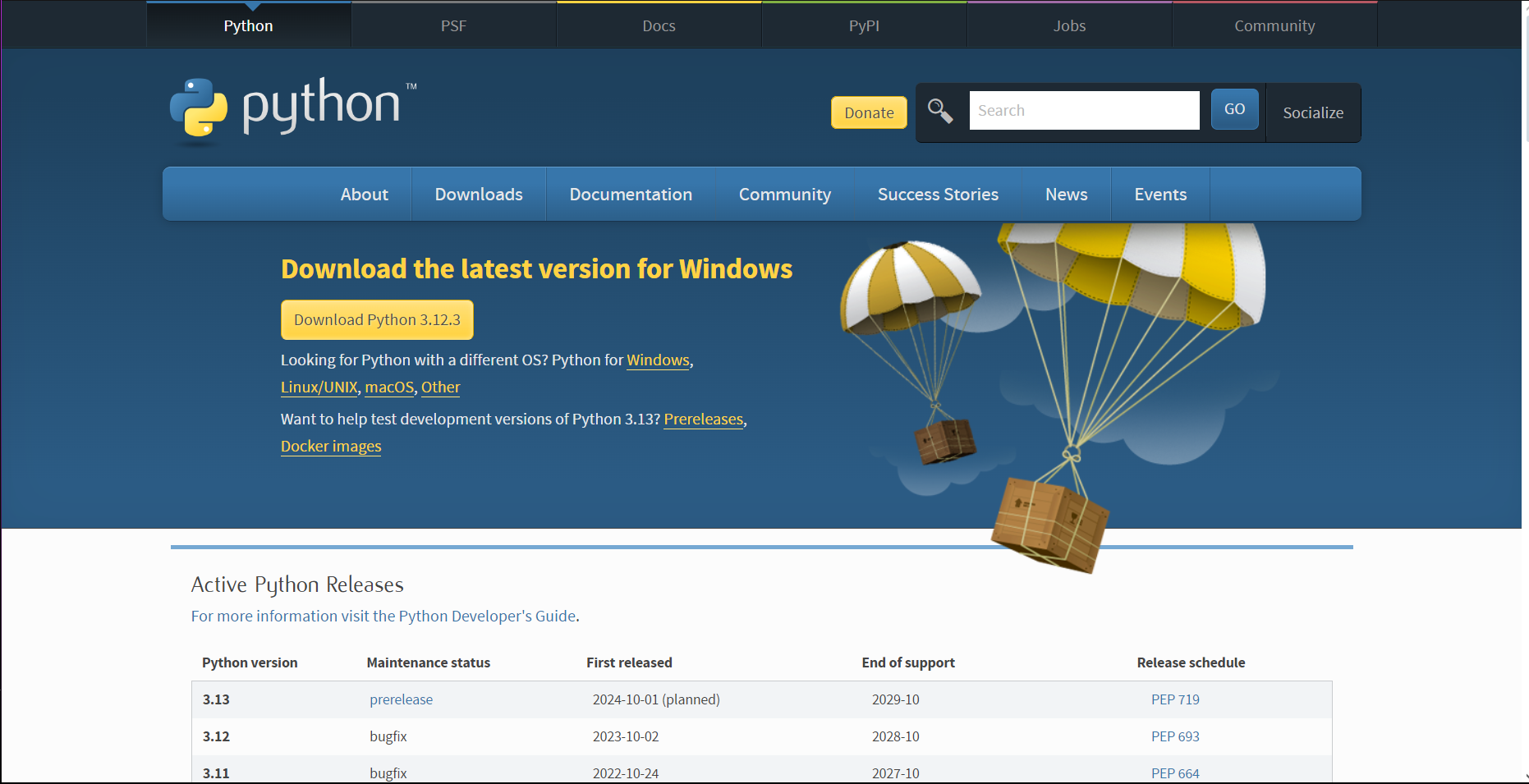
    <p><strong>Downloading:</strong> Go to the <a href="https://www.python.org/downloads">www.python.org/downloads</a> and download the latest version of python.
<img src="/blogs/assets/images/Getting-started-with-python/python-download-page.png" alt="Python download page" /></p>
  </li>
  <li>
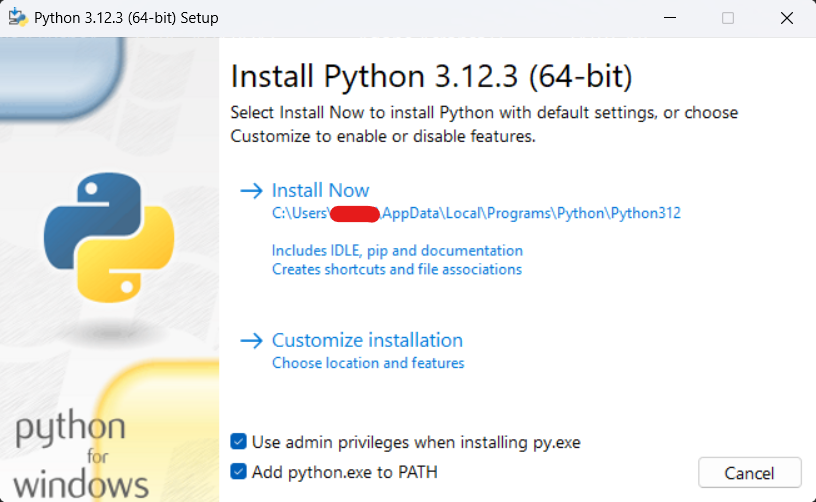
    <p><strong>Installing:</strong> Once you download the installer. Open it and install according to the instructions given in the installer. Also don’t forget to check the “Add python.exe to PATH” checkbox. It add python to path so that we don’t have to go to it’s installed folder to run it everytime.
<img src="/blogs/assets/images/Getting-started-with-python/python-install.png" alt="install python" /></p>
  </li>
</ol>

<h2 id="compilersinterpreters">Compilers/Interpreters</h2>

<p>Computers understand only one language and that’s binary(0101001), but since we’ll be giving instructions(programming) in python, we need something to convert our program to computer understandable code(also called machine code).</p>

<p>This is where compilers/interpreters come in, these are software whch convert our code(source code) to machine code. When we installed python we actually installed the interpreter with some aditional tools. For more information on Compilers and interpreters see the explanation from <a href="https://www.geeksforgeeks.org/compiler-vs-interpreter-2/">geeksforgeeks</a>.</p>

<p>Python is a interpreted language, meaning it uses and interpreter and that’s exactly what we installed(well with some aditional tools).</p>

<h2 id="writing-our-first-python-program">Writing Our First Python Program</h2>

<p>Now that we have installed an interpreter, we can write and run code with it:</p>

<ol>
  <li>
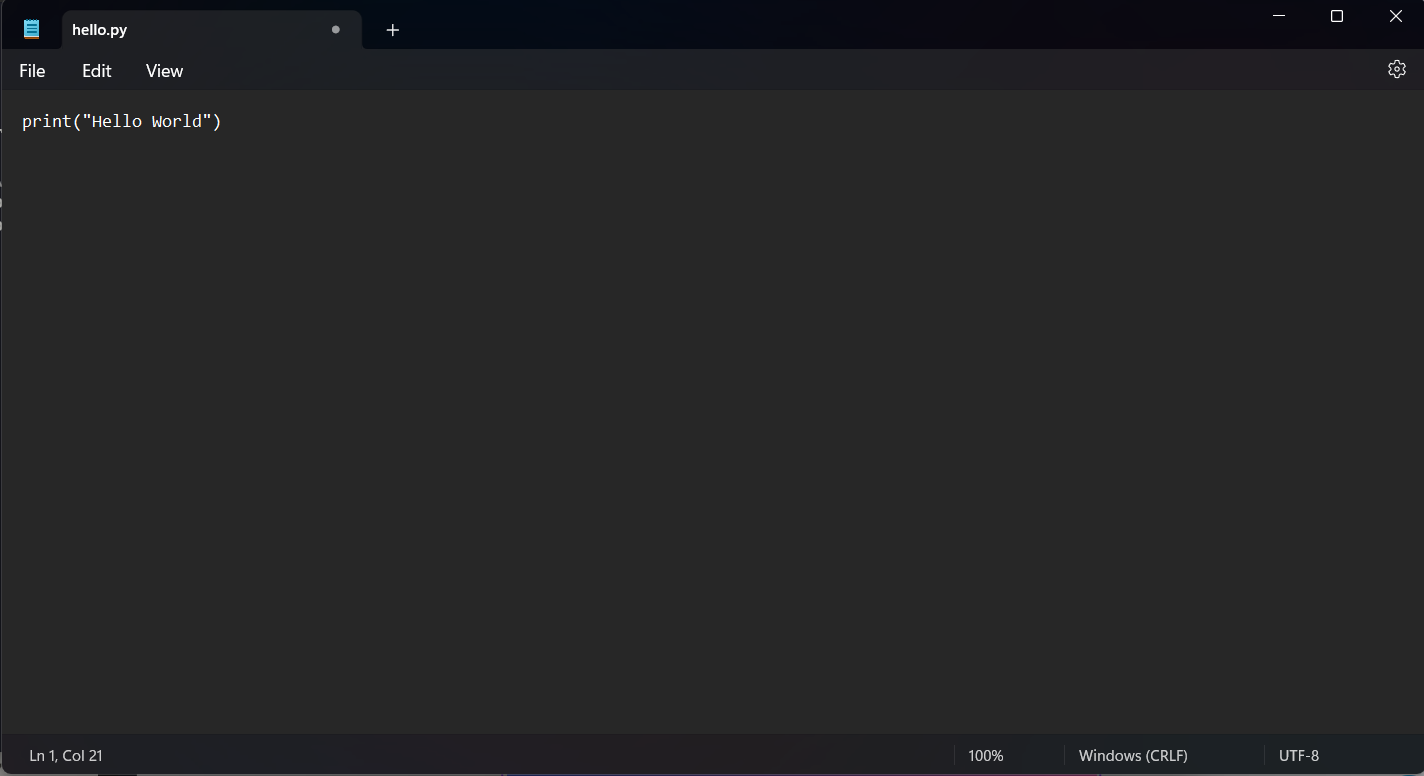
    <p>Open Notepad(or you can use any text editor u like). and type:</p>

    <div class="language-python highlighter-rouge"><div class="highlight"><pre class="highlight"><code><span class="k">print</span><span class="p">(</span><span class="s">"Hello World"</span><span class="p">)</span>
</code></pre></div>    </div>

    <p><img src="/blogs/assets/images/Getting-started-with-python/notepad-write.png" alt="Write hello world program in notepad" /></p>
  </li>
  <li>
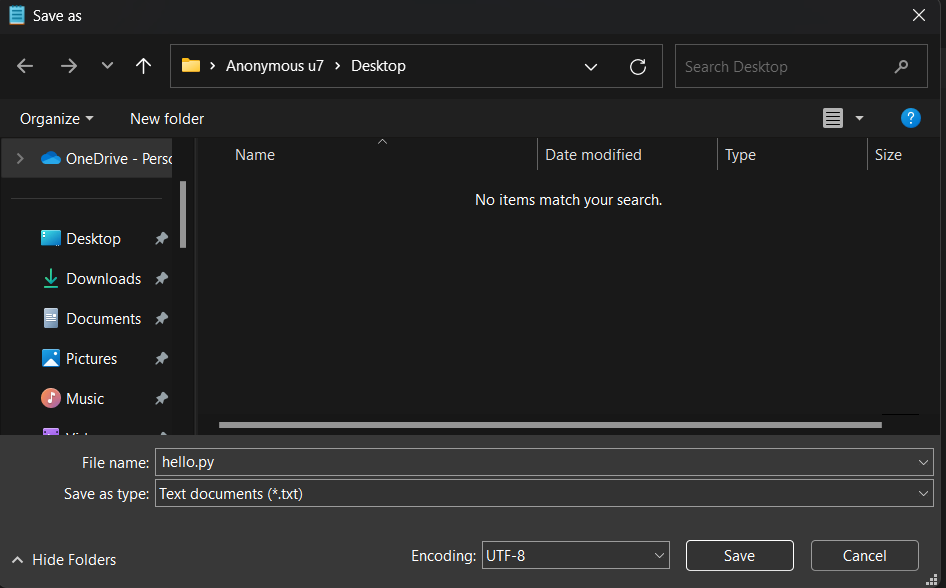
    <p>Save the file as hello.py on your Desktop(You can use any one word name for now).
 <img src="/blogs/assets/images/Getting-started-with-python/notepad-save.png" alt="saving as hello.py" /></p>
  </li>
  <li>
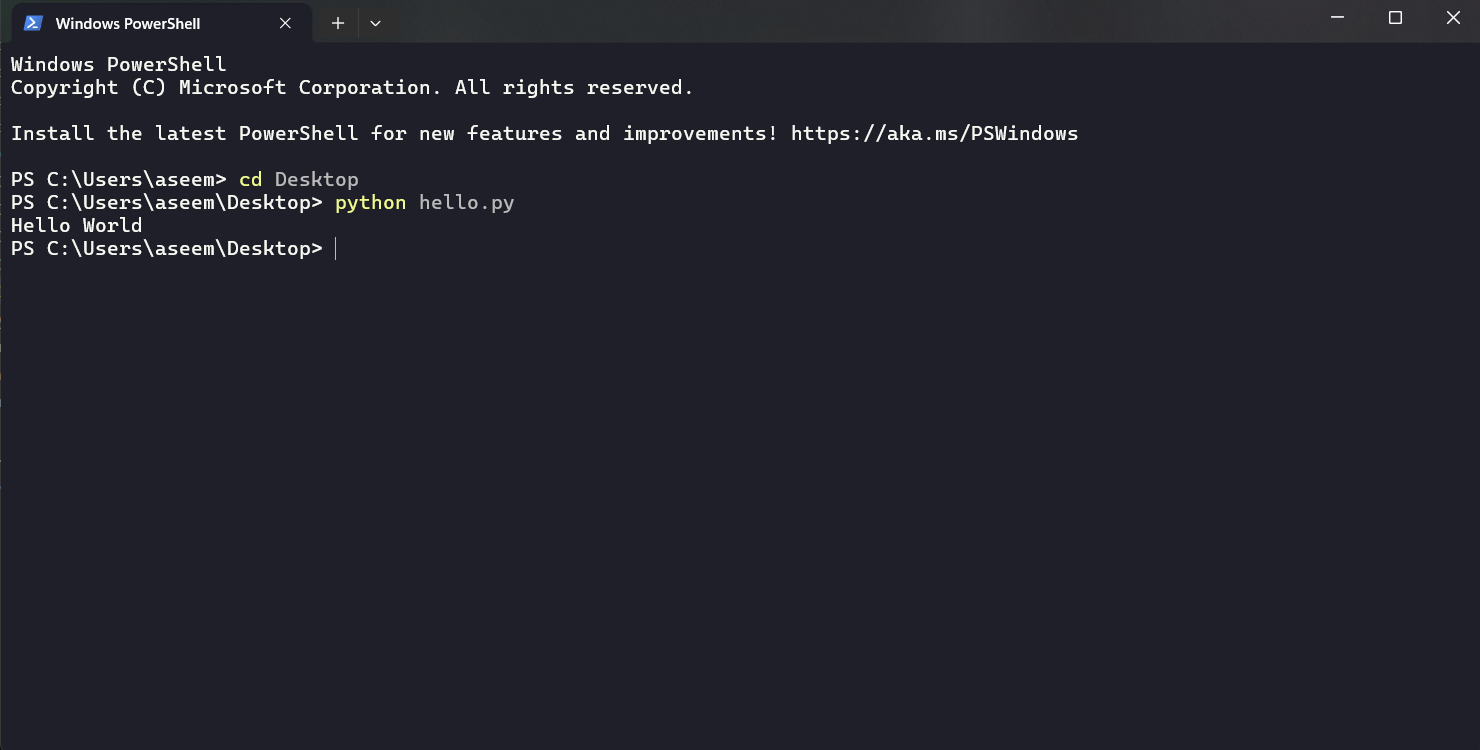
    <p>Open Command Prompt and type:</p>

    <div class="language-shell highlighter-rouge"><div class="highlight"><pre class="highlight"><code><span class="nb">cd </span>Desktop
python hello.py
</code></pre></div>    </div>
  </li>
  <li>
    <p>Output
<img src="/blogs/assets/images/Getting-started-with-python/py-output.png" alt="Hello World Output" /></p>
  </li>
</ol>

<h2 id="conclusion">Conclusion</h2>

<p>Congratulations for running your first python program. In the next blog, we’ll see what code editors are and how we use them. Thanks for reading.</p>]]></content><author><name></name></author><category term="Programming" /><category term="programming" /><summary type="html"><![CDATA[Introduction]]></summary></entry></feed>